Pick your kind of music.
Browse decades and genres, search for a song, or save your favourites. Queue a few tracks and let Auto DJ keep the music going.
 RetroPinJukeTHE CABINET JUKEBOX
FREE FOR WINDOWS · MADE FOR YOUR CABINET
Give your pinball cabinet a second life as a jukebox. Pick a favourite, tune into live radio, and let the good times play.
Windows 10 / 11 · 64-bit · Version 1.0.56
A FAMILIAR FEEL. A NEW REASON TO PLAY.
Built around the way you use your cabinet, from the first selection to the last song of the night.
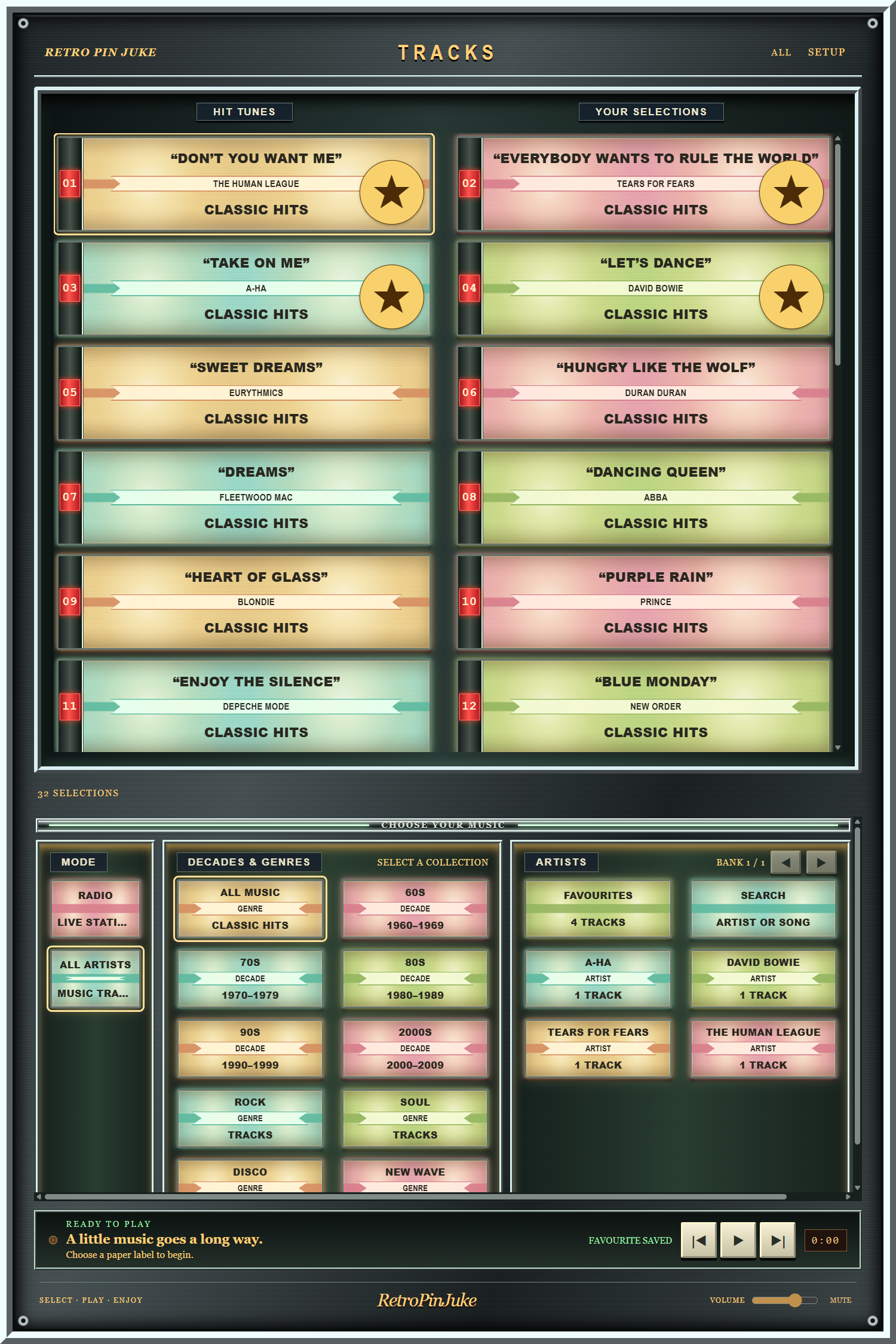
Browse decades and genres, search for a song, or save your favourites. Queue a few tracks and let Auto DJ keep the music going.
Switch to internet radio, explore stations and save the ones you love. Track details and album art appear when available.
Use one screen or separate playfield, backglass and DMD displays. Map your cabinet buttons and launch straight from PinUP Popper.
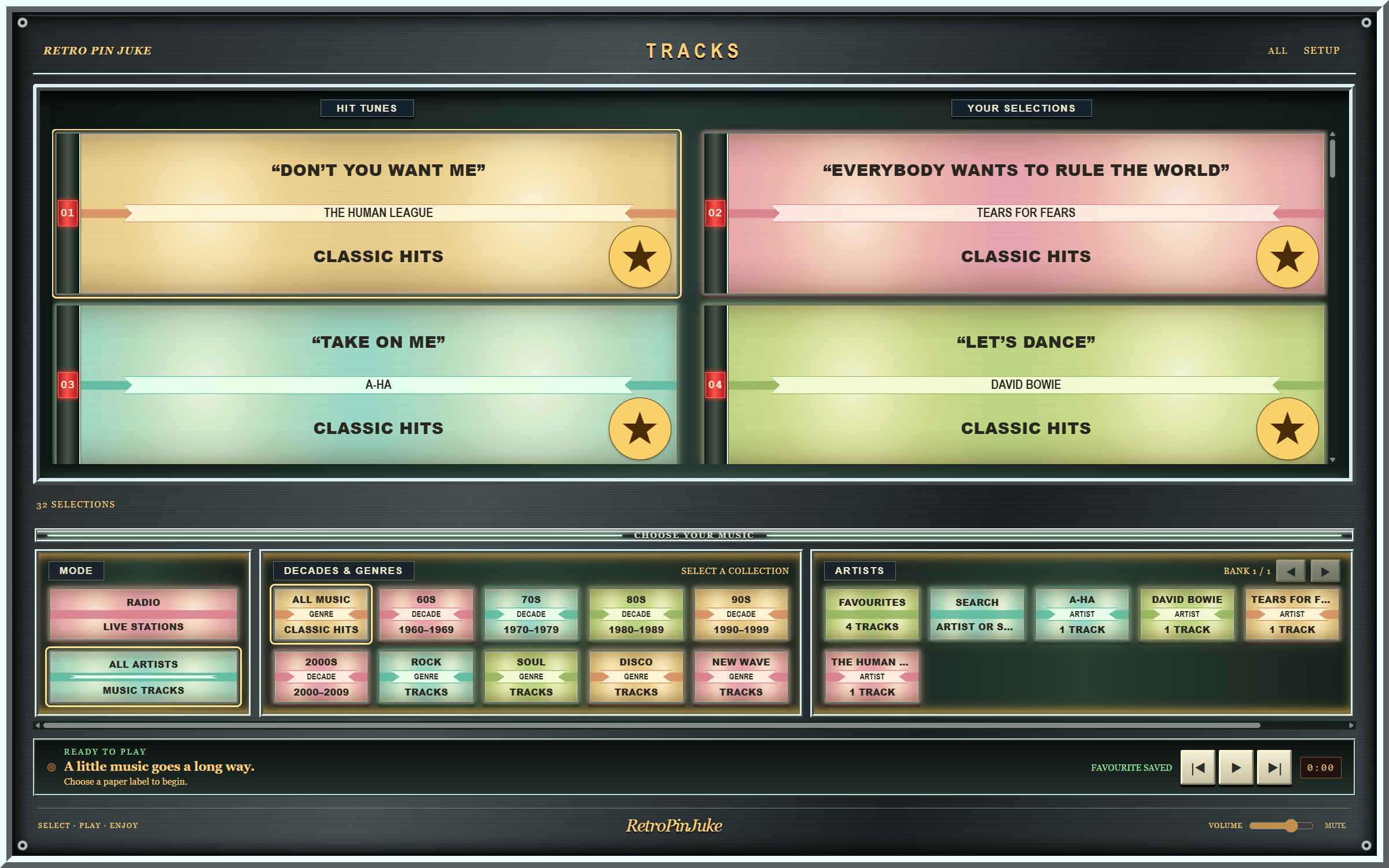
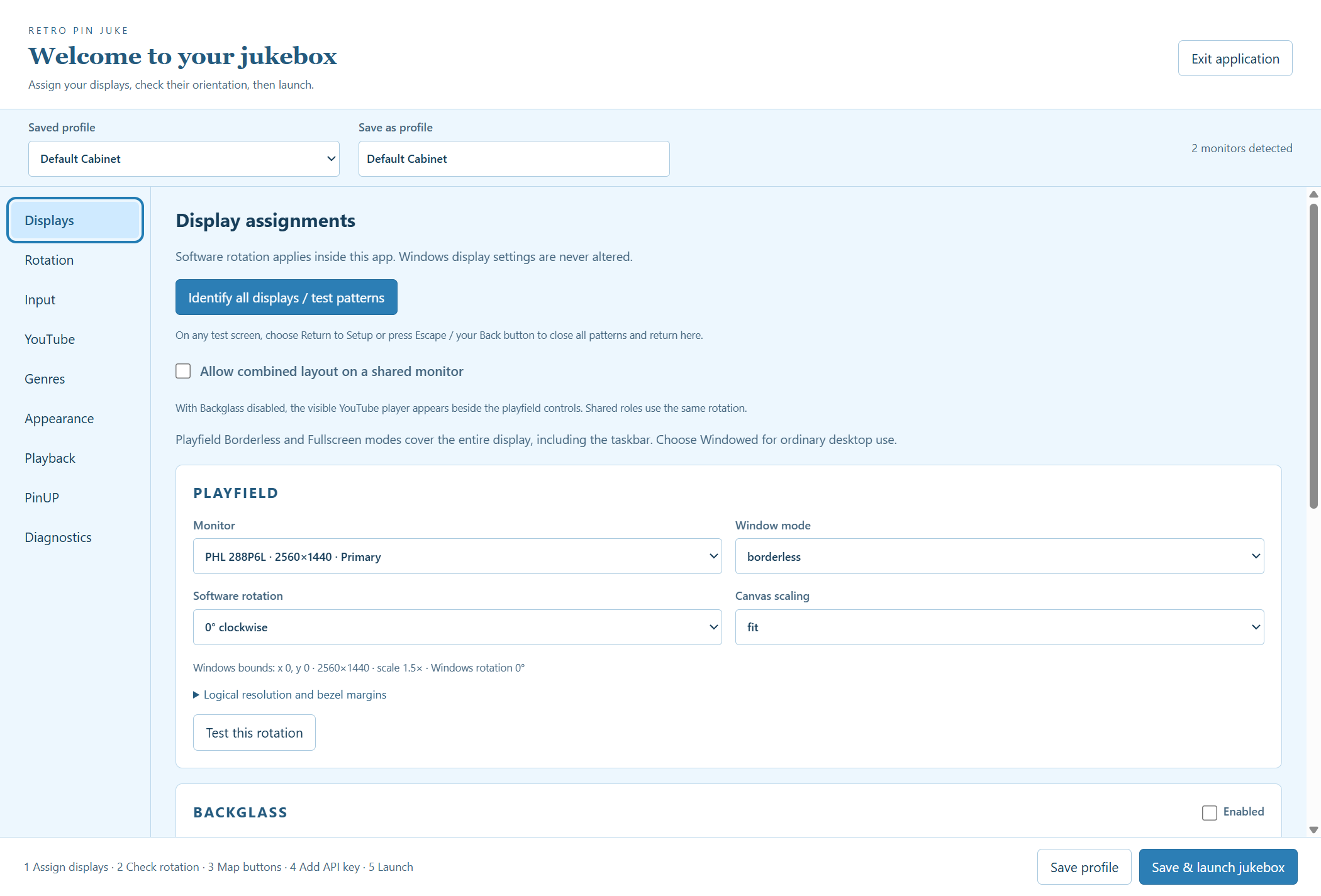
Screenshots from the current release. Sample song labels show demo mode; music playback needs a YouTube API key.
FREE TO DOWNLOAD. FREE TO ENJOY.
Same jukebox. Two ways to get started.
VERSION 1.0.56 Windows 10 / 11 · x64
Install once, launch quickly. The recommended choice for a permanent cabinet or PinUP Popper setup.
Download installerOne file to copy and run. Handy for trying the jukebox or taking it to another PC. Startup takes a little longer.
Download portableAbout browser warnings
Chrome may flag new or unfamiliar downloads as “suspicious”. RetroPinJuke’s Windows files are currently unsigned, so Windows may also show “Unknown publisher”. These warnings alone do not confirm malware. Use “Verify your download” below to compare your file with the published checksum.
Internet access is needed for music and radio. Radio needs no YouTube key.
Compare the SHA-256 checksum with your downloaded file.
c1abfc5794f6f609c55283dbacf3d59eb8334d022ae3fa7d7e18be932d4ce29778518dd2723f442bfa01b59b743d05cea79ea50ed87473869f094b40dd82ed21FROM DOWNLOAD TO FIRST SELECTION
No cabinet required to try it. Start on your desktop and move to your pinball setup when you’re ready.
Run the installer, or double-click the portable EXE. The first launch opens Setup. Choose a name for your cabinet profile.
Assign the playfield, backglass and optional DMD in Setup → Displays. Use the test patterns to check orientation. For a single screen, keep Backglass disabled.
For videos, enable YouTube Data API v3 in Google Cloud and add your key in Setup → YouTube. Follow the step-by-step API key guide below. Or choose Radio to listen without a key. Demo mode lets you try the controls first.
In Setup → Input, add bindings for navigation, Select and Back. Save & launch the jukebox. A keyboard works too: arrow keys to browse, Enter to select, Space to pause.
You’ll need a Google account and a browser. Create the key on your desktop, then enter it on the PC running RetroPinJuke. Radio works without a key.
Don’t post your key in screenshots or share it with other users. If it is exposed, replace it in Google Cloud and update the jukebox. Google may change its console labels; its official credentials guide and API key settings guide provide the latest reference.
Use the installed edition for faster startup. Create a shortcut to the installed EXE in a folder such as C:\vPinball\PopperLinks. Its target should include your profile name:
"C:\vPinball\RetroPinJuke\RetroPinJuke.exe" --profile "Default Cabinet"Add a Jukebox emulator with that folder as Games Folder and LNK as the extension. Set these scripts:
START "" "[STARTDIR]Launch\VPXSTARTER.exe" 1 1 60 "RetroPinJuke Playfield"
cd /d "[DIRGAME]"
start "" "[GAMEFULLNAME]""[STARTDIR]LAUNCH\PUPCLOSER.EXE" WINTIT "RetroPinJuke Playfield" 4 1In Games Manager → Add New Games, select Jukebox and scan. Add the shortcut, then use Playlist Config to add it to HOME LIST or your chosen playlist. Exit with Popper’s Exit Emulator button to close the jukebox and return to the wheel.
Download the matching artwork for your Popper setup. Both images are high-resolution PNGs with transparent backgrounds.
A compact record design with bold initials for the wheel menu.
Download wheel PNG
The complete RetroPinJuke design, also usable as an alternative wheel image.
Download full logo PNGSee Popper’s official Media Manager guide for more media options.
A COUPLE OF GOOD QUESTIONS
Yes. Download and use RetroPinJuke for free. There’s no subscription, account or paid edition.
You need your own YouTube Data API v3 key to find and play music videos. Internet radio works without one. With no key, demo mode displays sample labels so you can set up your cabinet and try the controls; those sample tracks do not play. See How to get a YouTube API key in the setup section above.
Artwork depends on the station’s track information and a matching cover being available. Some stations send only a programme name or no track metadata. When there’s no cover, RetroPinJuke displays the station information instead.
No. Videos play through YouTube’s official embedded player, and radio streams come from station servers. Availability, advertisements and playback restrictions depend on those services.
Absolutely. Use a single monitor and a mouse or keyboard. Cabinet buttons, extra displays and PinUP Popper are optional.
BUILT FOR THE LOVE OF IT
RetroPinJuke is a free project for the pinball community. Share it with a friend, show off your setup, or help someone get their first track playing.
If you’d like to help with the project, a small tip is always appreciated. Completely optional, always.
Support RetroPinJuke